
If you use a computer, read the newspaper, or watch the news, you will know about computer viruses or other malware. These are those malicious programs that once they infect your machine will start causing havoc on your computer. What many people do not know is that there are many different types of infections that are categorized in the general category of Malware.
Malware - Malware is programming or files that are developed for the purpose of doing harm. Thus, malware includes computer viruses, worms, Trojan horses, spyware, hijackers, and certain type of adware.This article will focus on those malware that are considered viruses, trojans, worms, and viruses, though this information can be used to remove the other types of malware as well. We will not go into specific details about any one particular infection, but rather provide a broad overview of how these infections can be removed. For the most part these instructions should allow you to remove a good deal of infections, but there are some that need special steps to be removed and these won't be covered under this tutorial.
Before we continue it is important to understand the generic malware terms that you will be reading about.
Adware - A program that generates pop-ups on your computer or displays advertisements. It is important to note that not all adware programs are necessarily considered malware. There are many legitimate programs that are given for free that display ads in their programs in order to generate revenue. As long as this information is provided up front then they are generally not considered malware.
Backdoor - A program that allows a remote user to execute commands and tasks on your computer without your permission. These types of programs are typically used to launch attacks on other computers, distribute copyrighted software or media, or hack other computers.
Dialler - A program that typically dials a premium rate number that has per minute charges over and above the typical call charge. These calls are with the intent of gaining access to pornographic material.
Hijackers - A program that attempts to hijack certain Internet functions like redirecting your start page to the hijacker's own start page, redirecting search queries to a undesired search engine, or replace search results from popular search engines with their own information.
Spyware - A program that monitors your activity or information on your computer and sends that information to a remote computer without your knowledge.
Trojan - A program that has been designed to appear innocent but has been intentionally designed to cause some malicious activity or to provide a backdoor to your system.
Virus - A program that when run, has the ability to self-replicate by infecting other programs and files on your computer. These programs can have many effects ranging from wiping your hard drive, displaying a joke in a small box, or doing nothing at all except to replicate itself. These types of infections tend to be localized to your computer and not have the ability to spread to another computer on their own. The word virus has incorrectly become a general term that encompasses trojans, worms, and viruses.
Worm - A program that when run, has the ability to spread to other computers on its own using either mass-mailing techniques to email addresses found on your computer or by using the Internet to infect a remote computer using known security holes.
How to remove malware from Windows 10, Windows 8 or Windows 7
OPTIONAL: Some forms of malware will not allow you to start some of the below utilities and on-demand scanners, while running Windows in Normal mode. If this happens, we recommend that you start your computer in Start your computer in Safe Mode with Networking, and try from there to perform the scan.We recommend that you first try to run the below scans while your computer is in Normal mode, and only if you are experiencing issues, should you try to start the computer in Safe Mode with Networking.
To start your computer Start your computer in Safe Mode with Networking, you can follow the below steps:
- Remove all floppy disks, CDs, and DVDs from your computer, and then restart your computer.
- If you are using Windows XP, Vista or 7 press and hold the F8 key as your computer restarts.Please keep in mind that you need to press the F8 key before the Windows start-up logo appears.
Note: With some computers, if you press and hold a key as the computer is booting you will get a stuck key message. If this occurs, instead of pressing and holding the “F8 key”, tap the “F8 key” continuously until you get the Advanced Boot Options screen.If you are using Windows 8, press the Windows key + C, and then click Settings. Click Power, hold down Shift on your keyboard and click Restart, then click on Troubleshoot and select Advanced options. - In the Advanced Options screen, select Startup Settings, then click on Restart.
- If you are using Windows XP, Vista or 7 in the Advanced Boot Options screen, use the arrow keys to highlight Safe Mode with Networking , and then press ENTER.
![[Image: Safemode.jpg]](https://malwaretips.com/images/removalguide/safemode.jpg "Safe Mode with Networking screen") \
\
If you are using Windows 8, press 5 on your keyboard to Enable Safe Mode with Networking.
Windows will start in Safe Mode with Networking.
STEP 1: Remove bootkits and trojans with Kaspersky TDSSKiller
In this first step, we will run a system scan with Kaspersky TDSSKIller to remove any malicious software that might be installed on your system.- Please download the latest official version of Kaspersky TDSSKiller.
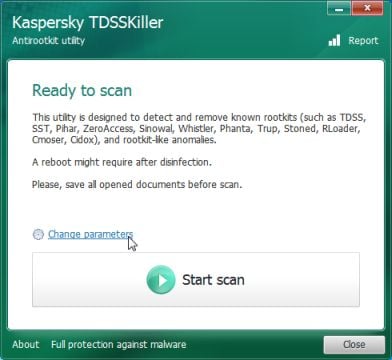
KASPERSKY TDSSKILLER DOWNLOAD LINK(This link will automatically download Kaspersky TDSSKiller on your computer.) - Double-click on tdsskiller.exe to open this utility, then click on Change Parameters.
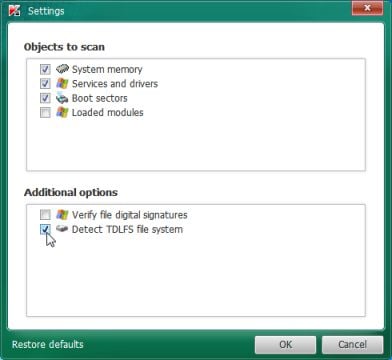
- In the new open window,we will need to enable Detect TDLFS file system, then click on OK.
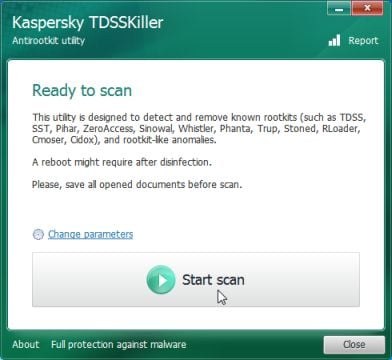
- Next,we will need to start a scan with Kaspersky, so you’ll need to press the Start Scan button.
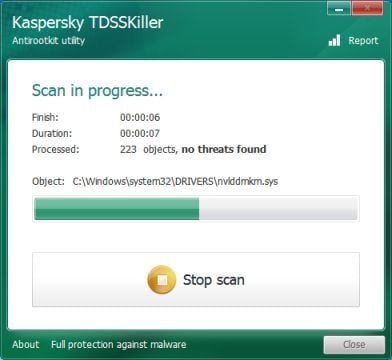
- Kaspersky TDSSKiller will now scan your computer for malware.
- When the scan has finished it will display a result screen stating
whether or not the infection was found on your computer. If it was found
it will display a screen similar to the one below.
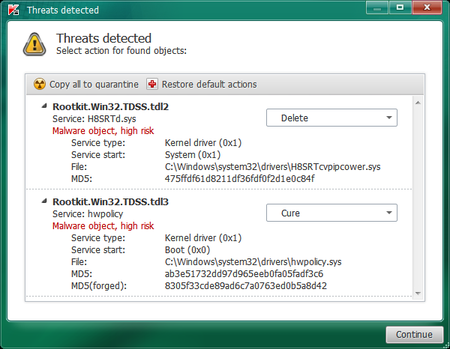
- To remove the infection simply click on the Continue button and TDSSKiller will attempt to clean the infection.A reboot will be require to completely remove any infection from your system.
STEP 2: Run RKill to terminate any malicious process
RKill is a program that will attempt to terminate all malicious processes associated with “Windows Update can not continue as your Software copy is Expired/Corrupt” infection, so that we will be able to perform the next step without being interrupted by this malicious software.Because this utility will only stop “Windows Update can not continue as your Software copy is Expired/Corrupt” running process and does not delete any files, after running it you should not reboot your computer as any malware processes that are configured to start automatically will just be started again.
- While your computer is in Safe Mode with Networking, please download Rkill from the below link.
RKILL DOWNLOAD LINK (his link will open a new web page from where you can download “RKill”) - Double click on Rkill program to stop the malicious programs from running.
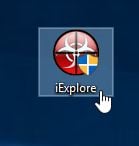
- RKill will now start working in the background, please be patient
while this utiltiy looks for malicious process and tries to end them.
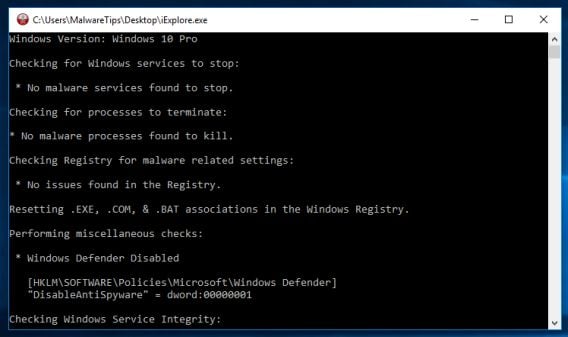
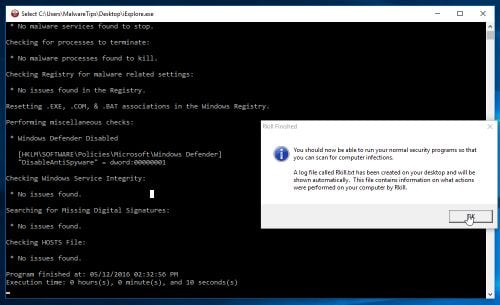
- When the Rkill tool has completed its task, it will generate a log.
Do not reboot your computer after running RKill as the malware programs
will start again.
STEP 3: Remove Trojan Horses, rogue security software and other malicious files from your computer with Malwarebytes Anti-Malware
Malwarebytes Anti-Malware Free uses industry-leading technology to detect and remove all traces of malware, including worms, Trojans, rootkits, rogues, dialers, spyware, and more.It is important to note that Malwarebytes Anti-Malware works well and should run alongside antivirus software without conflicts.
- You can download download Malwarebytes Anti-Malware from the below link.
MALWAREBYTES ANTI-MALWARE DOWNLOAD LINK (This link will open a new web page from where you can download “Malwarebytes Anti-Malware Free”) - Once downloaded, close all programs, then double-click on the icon on your desktop named “mbam-setup” to start the installation of Malwarebytes Anti-Malware.
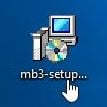
 You may be presented with a User Account Control dialog asking you if
you want to run this file. If this happens, you should click “Yes” to continue with the installation.
You may be presented with a User Account Control dialog asking you if
you want to run this file. If this happens, you should click “Yes” to continue with the installation. - When the installation begins, you will see the Malwarebytes Anti-Malware Setup Wizard which will guide you through the installation process.
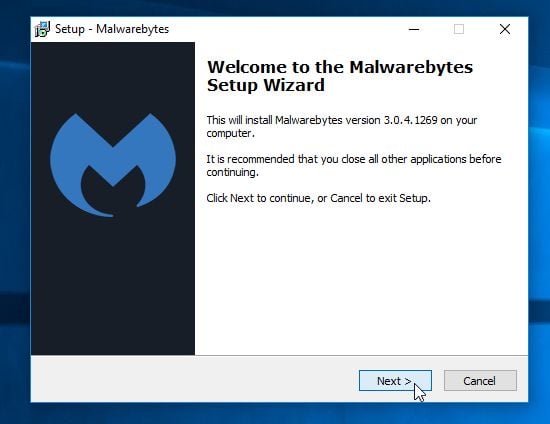
To install Malwarebytes Anti-Malware on your machine, keep following the prompts by clicking the “Next” button.
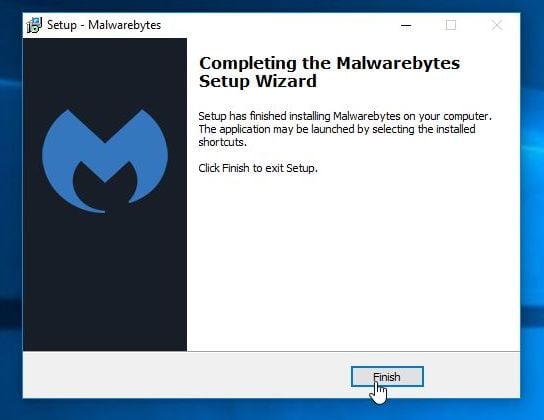
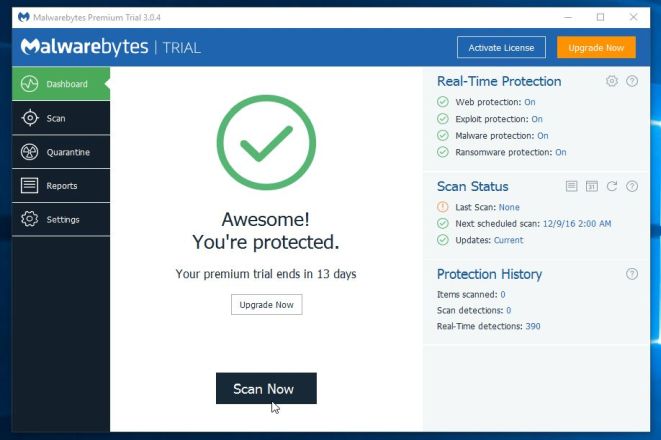
- Once installed, Malwarebytes Anti-Malware will automatically start
and you will see a message stating that you should update the program,
and that a scan has never been run on your system. To start a system
scan you can click on the “Scan Now” button.
- Malwarebytes Anti-Malware will now start scanning your computer for
virus. When Malwarebytes Anti-Malware is scanning it will look like the
image below.
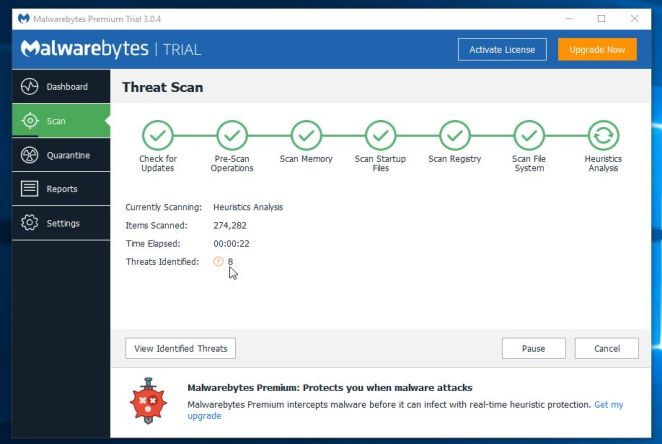
- When the scan has completed, you will now be presented with a screen
showing you the malware infections that Malwarebytes Anti-Malware has
detected. To remove the malicious programs that Malwarebytes
Anti-malware has found, click on the “Remove Selected” button.
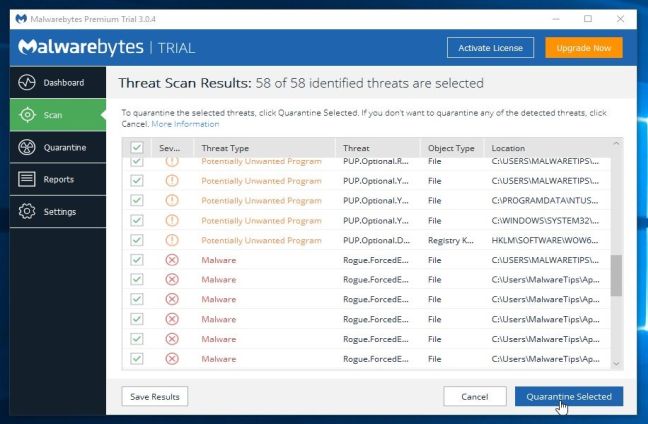
Please note that the infections found may be different than what is shown in the image. - Malwarebytes Anti-Malware will now quarantine all the malicious
files and registry keys that it has found. When removing the files,
Malwarebytes Anti-Malware may require a reboot in order to remove some
of them. If it displays a message stating that it needs to reboot your
computer, please allow it to do so.
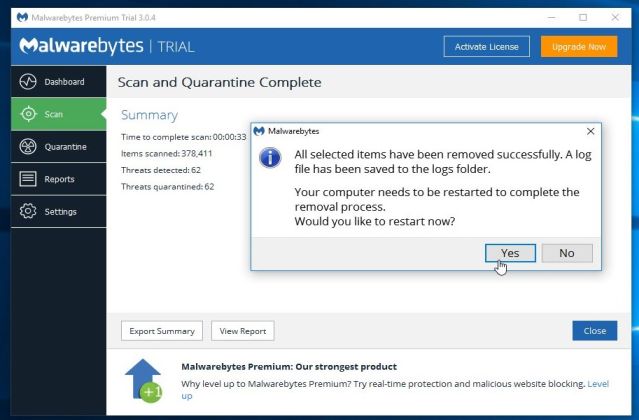
After your computer will restart, you should open Malwarebytes Anti-Malware and perform another “Threat Scan” scan to verify that there are no remaining threats
STEP 4: Remove malware from your computer with HitmanPro
HitmanPro is a second opinion scanner, designed to rescue your computer from malware (viruses, trojans, rootkits, etc.) that have infected your computer despite all the security measures you have taken (such as anti virus software, firewalls, etc.). HitmanPro is designed to work alongside existing security programs without any conflicts. It scans the computer quickly (less than 5 minutes) and does not slow down the computer.- You can download HitmanPro from the below link:
HITMANPRO DOWNLOAD LINK (This link will open a new web page from where you can download “HitmanPro”) - Double-click on the file named “HitmanPro.exe” (for 32-bit versions of Windows) or “HitmanPro_x64.exe” (for 64-bit versions of Windows). When the program starts you will be presented with the start screen as shown below.
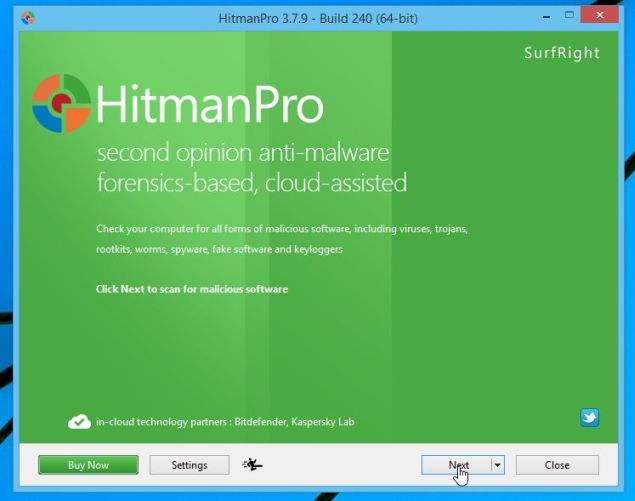
Click on the “Next” button, to install HitmanPro on your computer.
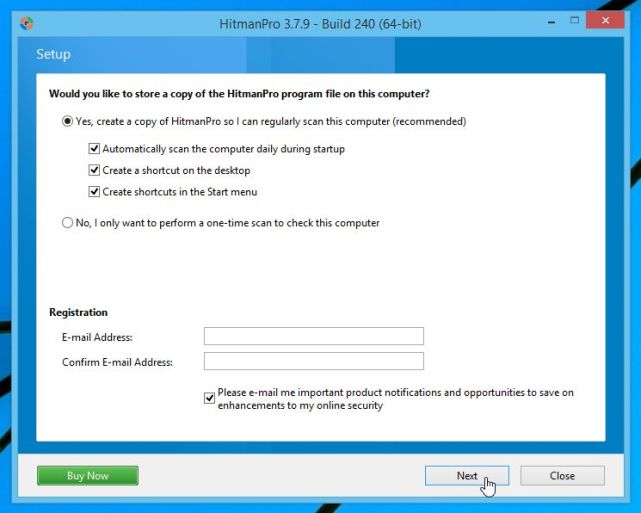
- HitmanPro will now begin to scan your computer for malicious files.
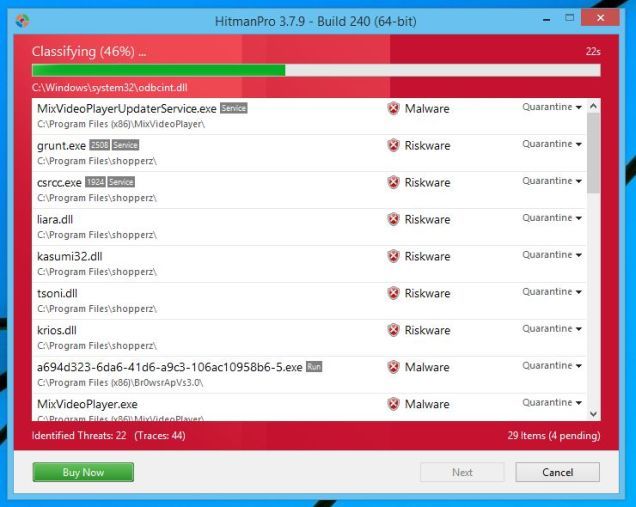
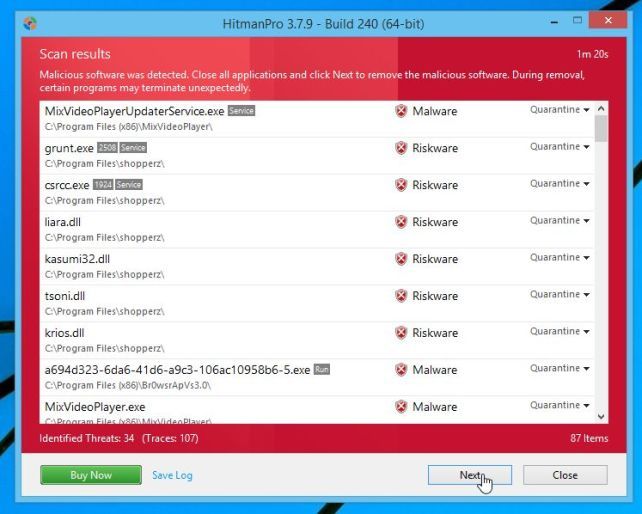
- When it has finished it will display a list of all the malware that
the program found as shown in the image below. Click on the “Next” button, to remove viruses.
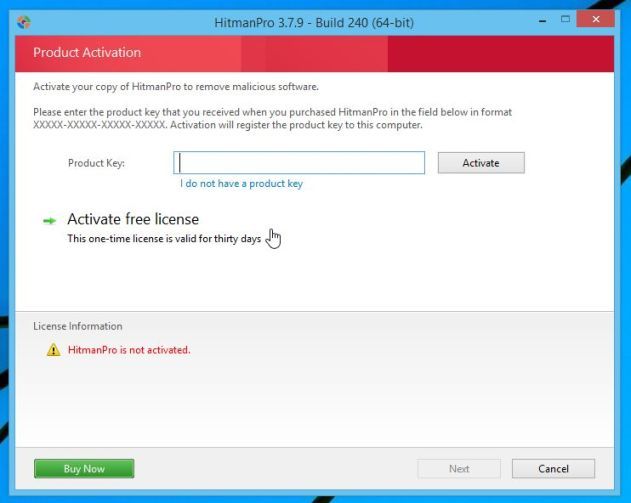
- Click on the “Activate free license” button to begin the free 30 days trial, and remove all the malicious files from your computer.
STEP 5: Remove rookits and other malware with Zemana AntiMalware
Zemana AntiMalware is a cloud on-demand scanner which uses several antivirus engines to scan your computer for malware.- You can download Zemana AntiMalware from the below link:
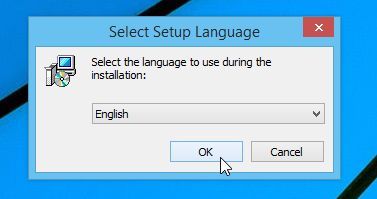
ZEMANA ANTIMALWARE DOWNLOAD LINK (This link will open a new web page from where you can download “Zemana AntiMalware”) - Double-click on the file named “Zemana.AntiMalware.Setup.exe” to
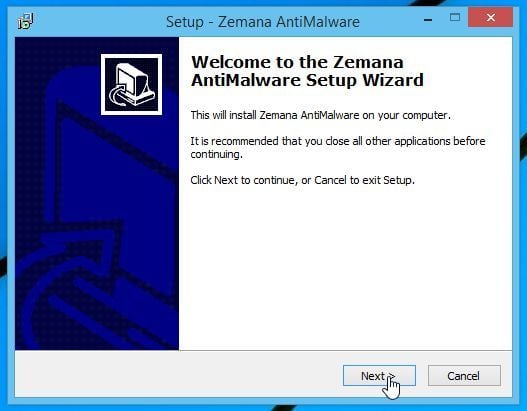
install Zemana AntiMalware on your computer. When the program starts you
will be presented with the start screen as seen below.
Click on the “Next” button, to install Zemana AntiMalware on your computer.
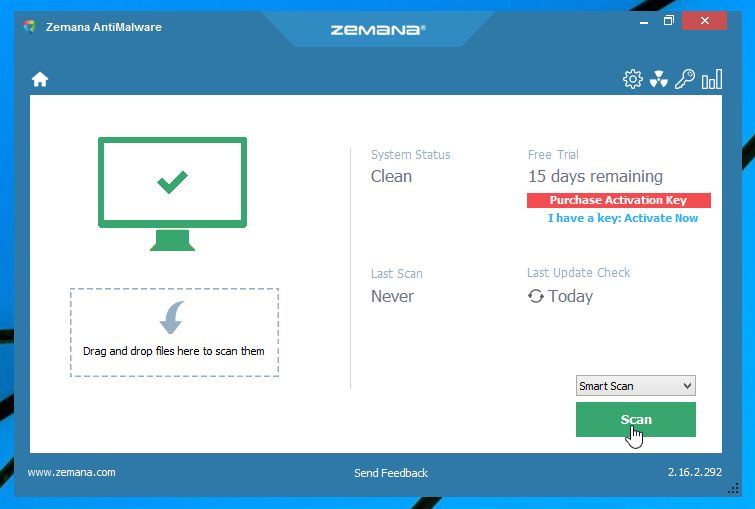
- When Zemana AntiMalware will start, click on the “Scan” button.
- Zemana AntiMalware will now scan computer for any malicious files. This process can take up to 10 minutes.
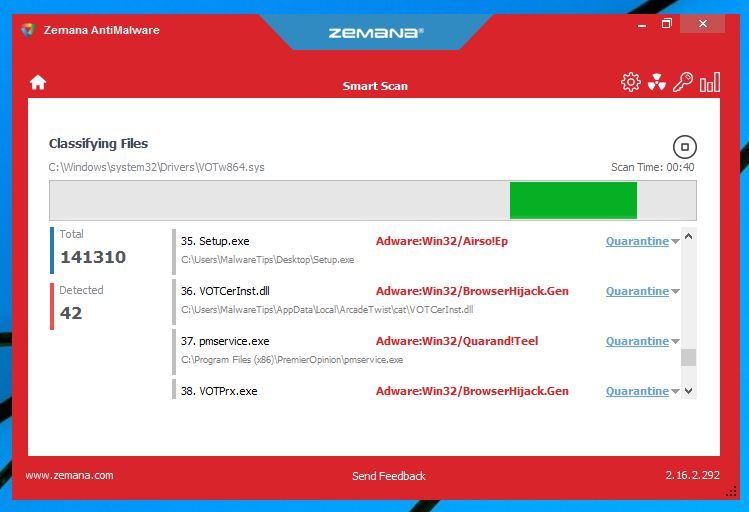
- When Zemana AntiMalware has finished it will display a list of all the malware that the program found. Click on the “Next” button, to remove the malicious files from your computer.
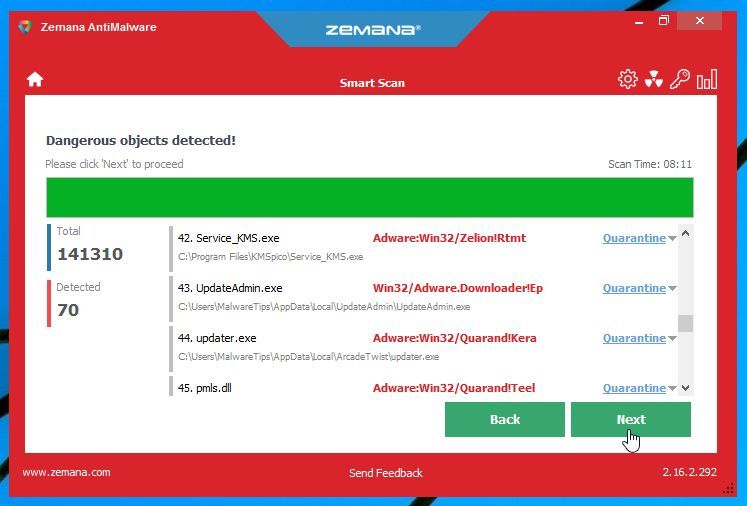
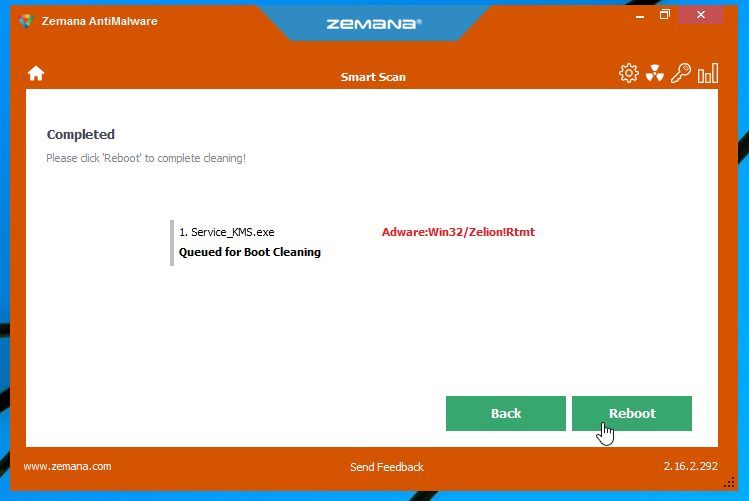
- Zemana AntiMalware will now remove all the detected malicious files,
and at the end a system reboot may be required to remove all traces of
malware.
STEP 6: Remove adware from any browser with AdwCleaner
The AdwCleaner utility will scan your computer and web browser for the malicious files, browser extensions and registry keys, that may have been installed on your computer without your knowledge.- You can download AdwCleaner from the below link.
ADWCLEANER DOWNLOAD LINK (This link will open a new web page from where you can download “AdwCleaner”) - Before starting AdwCleaner, close all open programs and internet browsers, then double-click on the AdwCleaner icon.
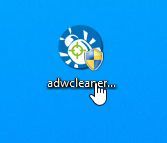
If Windows prompts you as to whether or not you wish to run AdwCleaner, please allow it to run. - When the AdwCleaner program will open, click on the “Scan” button as shown below.
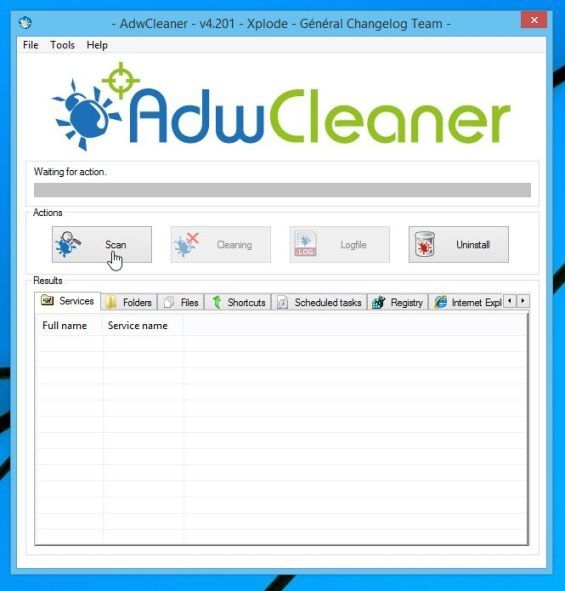
AdwCleaner will now start to search for malicious files that may be installed on your computer. - To remove the malicious files that were detected in the previous step, please click on the “Clean” button.
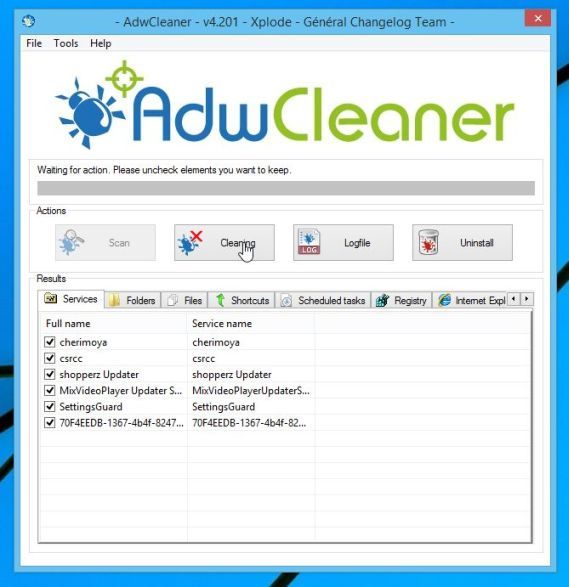
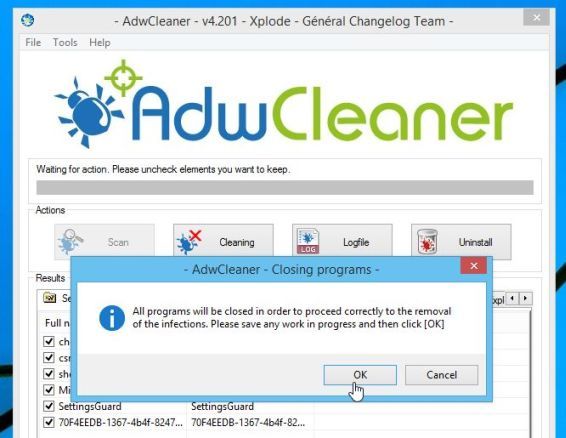
- AdwCleaner will prompt you to save any open files or documents, as the program will need to reboot the computer. Please do so and then click on the OK button.
0 commentaires:
Enregistrer un commentaire